
User Guide
Complete guide to ORB Revolution Expert Advisor
1. About ORB Revolution EA
ORB Revolution EA is a next-generation MetaTrader 5 Expert Advisor that automates the Opening Range Breakout (ORB) strategy, a proven approach for capturing market momentum after the initial range of the trading session. This EA is engineered for both breakout and reversal trading, offering a suite of advanced features: multi-layered filters (volatility, oscillator, trend, opening-range context, gap context, time, day, news), same-direction candle exits, comprehensive risk management system (daily loss limiter, profit targets, partial TP, trailing stop, breakeven), trade obfuscation, and a real-time performance panel. It is ideal for traders who demand precision, flexibility, and transparency in their automated trading.
2. System Intent
ORB Revolution EA is built to protect capital, respect rules, and execute with discipline. It is not a black box — it is a framework you control. Understanding whether this system aligns with your trading approach is essential before deploying it live.
ALIGNED WITH THIS SYSTEM
- Users who understand and adapt their strategy
- Those seeking repeatable execution, not luck
- Prop firm traders operating under strict rules
- Traders who prioritize drawdown control
MISALIGNED WITH THIS SYSTEM
- Shortcut-seekers chasing fast profits
- No interest in understanding risk
- Grid or martingale dependency
- Black-box expectations
ORB Revolution EA is built to protect capital, respect rules, and execute with discipline.
3. Supported Strategies
Mix and match these features to create a strategy that fits your risk profile and market view:
Classic ORB
Trade breakouts from the morning range, with or without confirmation candle.
ORB with Volatility/Trend Filter
Only trade when the market is volatile or trending.
ORB with News Avoidance
Avoid trading during major news or holidays.
ORB with Risk Management
Enforce daily loss limits and profit targets for prop firm compliance and disciplined trading.
ORB with Partial TP and Trailing
Take profits in stages and lock in gains with trailing stops.
ORB + Reversal
Trade reversals after failed breakouts or wick rejections.
ORB Rebreak
Wait for an initial range breakout, a controlled return into the range, and a second breakout in the same direction before entering.
Day/Time-Filtered ORB
Only trade on specific days or during certain hours.
Obfuscated ORB
Hide your trading logic from brokers for added security.
4. Using the Features – Step-by-Step
Initial Setup
- 1. Attach the EA to your desired chart and timeframe
- 2. Configure all input parameters according to your trading plan
- 3. Enable/disable features as needed (breakout, reversal, news filter, etc.)
Range Calculation
The EA calculates the high, low, open, and close between your specified start and end times. This range is visually drawn on the chart (if enabled). All trade logic is based on this range.
Breakout Trades
When price breaks above the range high (for buys) or below the range low (for sells), the EA checks all enabled filters (time, volatility, oscillator, trend, opening-range context, gap context, day, news). If all filters pass, a trade is opened with your specified lot size, SL, and TP. Optional features include partial TP, breakeven, and trailing stop.
Rebreak Trades
Rebreak Trade uses a three-stage confirmation sequence. Price must first break outside the opening range, return into the range by the configured Validation Level, and then break the same boundary again. The EA does not enter on the first breakout or on the pullback. Filters are evaluated and the trade is submitted only at the final rebreak.
Reversal Trades
If enabled, reversal trades are triggered after a breakout, under certain conditions (e.g., failed breakout, wick rejection). Reversal checks its own independent filter set before opening a trade, so BO and RE can use different market-quality rules, risk, and management settings.
Filters
- • Volatility Filter: Compares the opening range size with min/max thresholds measured either as a percentage of ATR or directly in points
- • Oscillator Filter: Uses Bollinger Bands to classify market conditions (Neutral, Trend, Strong Trend)
- • Trend Filter: Uses Intraday VWAP or Moving Average to determine trend direction
- • Opening Range Context Filters: Gate trades by where the range closed, whether the high or low formed first, and whether price broke the prior day's range
- • Gap Filters: Require or reject overnight gaps and opening-range-to-opening-range gaps by direction and size
- • Time/Day Filter: Restricts trading to certain hours or days
- • News Filter: Blocks trading during high-impact news or holidays
Risk Management
- • Daily Loss Limiter: Monitors daily loss and blocks trading if the limit is breached
- • Profit Target System: Stops trading or closes positions when daily or cumulative profit goals are achieved
- • Partial Take Profit: Closes a portion of the position at predefined profit levels
- • Breakeven: Moves SL to entry price after a certain profit is reached
- • Trailing Stop: Dynamically moves SL to lock in profits using range multiples or candle highs/lows
- • Same-Direction Exit: Lets momentum continue after entry, then exits on the first opposite closed candle once armed
Obfuscation
When enabled, the EA randomizes order prices and execution times, and can hide SL/TP from the broker, making your trading less predictable and more private.
5. ORB Revolution EA — Inputs Guide
This section explains every input in ORB Revolution in plain language, with practical notes on how each setting affects execution. The EA is designed for disciplined, risk-controlled automation. Many parameters use RSM (Range Size Multiples), which means values scale automatically with the session's opening range.
Important Notes
- • RSM (Range Size Multiples) = a multiplier of the calculated opening range size. Example: if the range is 100 points, 0.5 RSM = 50 points.
- • Performance is tracked by the exact Magic Number + Symbol combination. Use different Magic Numbers for different strategies trading the same symbol.
- • If you enable News Filter, ensure the news URL is whitelisted in MT5 (WebRequest allowed URLs).
- • When using Obfuscation (virtual TP/SL), your broker will not "see" the real TP/SL. Make sure your VPS/terminal is stable.
- • Hide broker-visible trade comments can be enabled independently, even when Trade Obfuscation is disabled.
- • For prop-firm style trading, combine: Risk Management System + News Filter + Day/Time Filters.
General EA Settings
- • Magic Number: Identifies the EA's trades and, together with the trading symbol, defines the strategy's performance history. Use a different number for strategies that trade the same symbol. Example:
20260107 - • Trade Comment: Optional broker-visible text attached to an order or position. It can help you recognize a trade in MT5, but it is not used for strategy identification or performance tracking.
- • Log Level: Controls the verbosity of EA logging output in the Experts tab:
- ◦ Errors Only: Only critical errors are logged
- ◦ General Information: Standard operational logs (recommended for most users)
- ◦ Detailed Debug: Comprehensive logging for troubleshooting and validation
- • Show Information Panel: If enabled, displays a real-time dashboard on the chart with strategy status, filters, trades, and performance metrics.
- • Panel Scale: Adjusts the panel display size to match your screen resolution:
- ◦ Standard (1080p): Default size optimized for Full HD displays (recommended for most users)
- ◦ Large (1440p): Increased size for 2K/QHD monitors
- ◦ Extra Large (4K): Maximum size for 4K/UHD displays and ultra-wide monitors
- • Push Notifications: Sends real-time alerts to your MetaTrader mobile app. Two levels are available:
- ◦ Critical — High-priority events only:
- – Trade opened
- – Trade closed (with reason)
- – Daily drawdown limit hit
- – Target profit reached
- ◦ Important — All Critical alerts, plus:
- – Breakeven triggered
- – Partial TP triggered
- – Trailing stop triggered
- – Range is building
- – Range is trading
- – Range closed
- ◦ Critical — High-priority events only:
⚠ Setup Required — MT5 Push Notifications
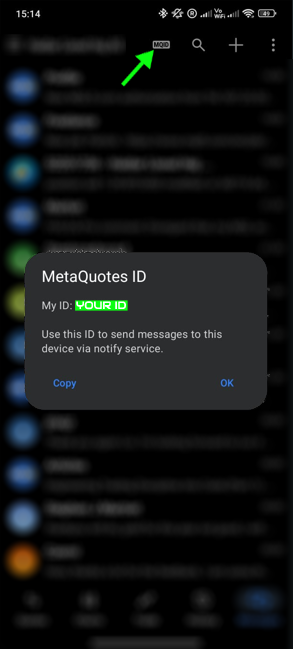
To receive push notifications on your phone, you must link your MetaQuotes ID (MQID) in MetaTrader 5:
- Open MetaTrader 5 on your mobile device and tap the notification bell icon (top bar) to find your MetaQuotes ID.
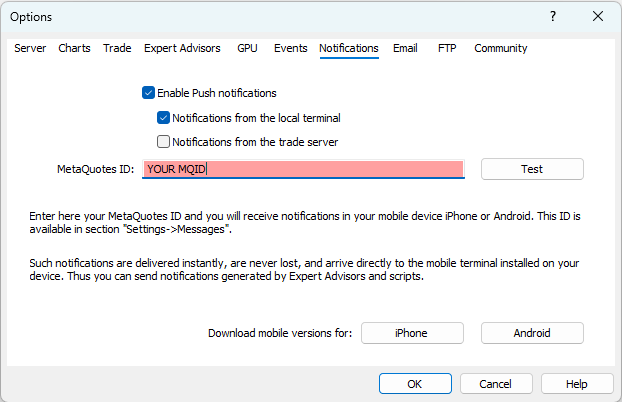
- In MT5 on your PC, go to Tools → Options → Notifications.
- Check Enable Push Notifications and enter your MQID in the field provided.
- Click Test to confirm the connection, then OK.
Step 1 — Find your MQID in the mobile app
Step 2 — Enter MQID in MT5 desktop Options
How performance tracking works
ORB Revolution groups historical results by the exact combination of Magic Number and trading Symbol. The Trade Comment is no longer treated as a strategy name and is not read when the EA calculates or displays performance.
The same Magic Number on two different symbols creates two separate performance groups. If two configurations use the same Magic Number on the same symbol, their trades are intentionally combined into one performance history.
For reliable strategy reporting:
- • Keep the Magic Number consistent when you want new trades to continue an existing symbol-specific history
- • Assign a different Magic Number when you want separate performance results for another strategy on the same symbol
- • Expect a separate performance group when the same Magic Number is used on a different symbol
- • Change or hide the Trade Comment freely; it has no effect on historical matching or panel metrics
Treat Magic Number + Symbol as the strategy's performance key. The Trade Comment is optional display metadata and can be prevented from reaching the broker with Hide broker-visible trade comments.
Panel Components Explained
The information panel is a powerful real-time dashboard that provides comprehensive visibility into your strategy's performance, current market conditions, and filter status—all directly on your chart. Enable it in General EA Settings and adjust the scale to match your screen resolution.
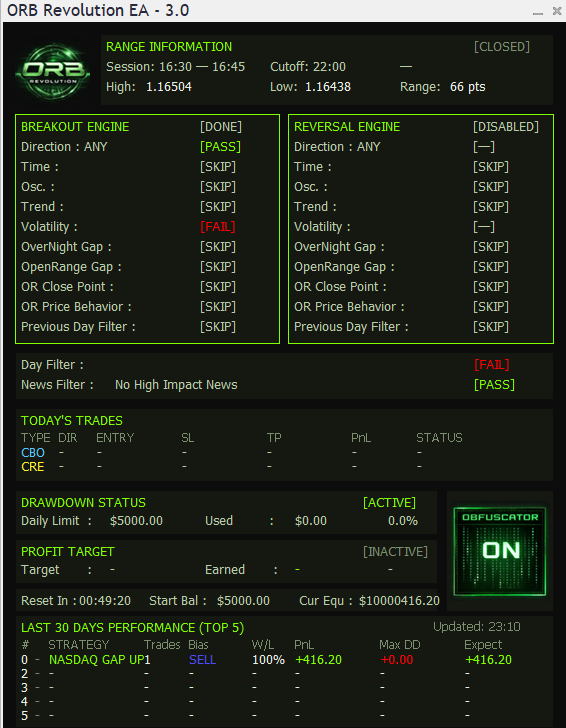
Components Overview
Performance Identity
Displays the Magic Number and current symbol used to identify performance, together with the EA version and current trading session details including range start/end times.
Range Data
Shows the current opening range's high, low, open, and close values, along with the calculated range size. This is the foundation for all breakout and reversal calculations.
Active Trades Section
Displays all open positions (breakout and reversal) with entry price, stop loss, take profit, current profit/loss, and trade direction. Each trade shows real-time P&L updates.
Filter Status Indicators
Visual indicators (green = pass, red = blocked) for all active filters:
- • Time Filter: Shows if current time is within allowed trading window
- • Volatility Filter: Indicates if range size meets volatility requirements
- • Oscillator Filter: Shows oscillator condition status based on Bollinger Bands
- • Trend Filter: Shows trend alignment status based on VWAP or Moving Average
- • Gap / OR Context Filters: Shows if gap direction, gap size, OR close zone, OR path, and prior-day-break rules are satisfied
- • Day Filter: Confirms if today is an allowed trading day
- • News Filter: Alerts when news events block trading
Risk Management Status
Displays current daily loss percentage, profit target progress, distance to limits, and time until daily reset. Shows breach status, remaining protection buffer, and profit target achievement.
Performance Table (Top 5 Magic Number + Symbol Groups)
Ranks performance using each unique Magic Number and Symbol combination. Shows:
- • Total profit/loss per strategy
- • Win rate percentage
- • Total number of trades executed
- • Average profit per trade
This allows you to compare multiple strategies running simultaneously and identify which configurations perform best.
Alerts & Notifications
Real-time warnings for upcoming news events, daily loss approaching limit, profit targets nearly reached, filter blocks, and session time changes.
Pro Tip
The panel is designed to be your central command center. Keep it visible during live trading to monitor filter status, track daily loss and profit targets in real-time, and compare strategy performance—all without switching windows or opening trade history.
Range Settings
The EA builds an Opening Range between the start and end time. The highest high and lowest low in that window define the range, and the EA uses it to compute breakout/reversal levels and risk distances.
📘 Helper Text
RSM means Range Size Multiples - values scale automatically with the session's opening range size.
- • Range Start Hours (0-23) / Minutes (0-59): Time when the EA starts calculating the opening range. Example:
10:30 - • Range End Hours (0-23) / Minutes (0-59): Time when the range calculation ends. The high/low between start and end define the range. Example:
15:45 - • Range Close Hours (0-23) / Minutes (0-59): Time when all trades are closed and the range is reset for the next session. Example:
20:00 - • Close trades at Range Close Time: If enabled, all open trades are automatically closed at the session close time (hard session cut-off). Useful for intraday strategies.
- • Shift Mode: Controls how the shift from range extremum is calculated. Options:
- ▸ Disabled: No shift applied - entries trigger exactly at range high/low.
- ▸ Points: Shift measured in fixed points (standard MT5 points).
- ▸ Range Size Multiples (RSM): Shift scales automatically based on the range size. More adaptive to market volatility.
- • Shift from Range Extremum (Points or RSM): Adds a buffer to breakout levels. The value interpretation depends on the Shift Mode:
- ▸ When Points mode: Value is in fixed points. Example:
10= 10 points buffer. - ▸ When RSM mode: Value is a multiplier of the range size. Example:
0.1= 10% of range size. - ▸ Higher values = fewer triggers (less sensitive). Lower values = more triggers (more sensitive). Set to
0for immediate breakout.
- ▸ When Points mode: Value is in fixed points. Example:
- • Draw Range: If enabled, the EA draws the calculated range on the chart for visual reference.
- • Range Color: The color used for the range box/lines on the chart. Example:
DodgerBlue
General Trade Settings
Top-level controls for trade direction, strategy enablement, and volatility measurement.
- • Allow Buy Trades: Enable or disable buy (long) direction independently. Useful for directional bias or one-way strategies.
- • Allow Sell Trades: Enable or disable sell (short) direction independently. Useful for directional bias or one-way strategies.
- • ATR Period (for volatility filters): ATR period used when at least one enabled BO or RE volatility filter is set to ATR Percentage. It is not used by filters set to Size in Points. Example:
3for short-term volatility assessment. - • Deactivate Breakout: If enabled, breakout trades are completely disabled for the session. Only reversal trades (if enabled) will be taken.
- • Deactivate Reversal: If enabled, reversal trades are completely disabled for the session. Only breakout trades (if enabled) will be taken.
- • Deactivate Reversal when Breakout closes in profit: If enabled, reversal is not allowed if the breakout trade ended profitably. This prevents "flipping" direction after a successful breakout move.
- • Max Risk % of Balance per trade (0 = disabled): A safety cap for small accounts trading high-margin instruments (e.g., Gold, BTC). When the EA calculates position size using % risk and the minimum allowed lot (e.g.,
0.01) still results in an actual risk that exceeds this threshold, the trade is skipped rather than entered with oversized risk. Example: a 1% risk target on a $1,000 account with a 5,000-point Gold SL may produce a $50 exposure (5%) at minimum lot — setting this to3.0would skip such trades. Set to0to disable.
Entry Engine Settings
Controls the entry style, candle-close entry confirmation, retest precision, and account risk cap for a valid setup.
- • Entry Type: Selects one of four entry modes:
- Breakout Trade: Enters when price first breaks the configured range boundary.
- Retest Trade: Waits for price to move beyond the range and then return to its configured entry level.
- Failed Breakout Trade: Uses the failed-breakout/counter-entry behavior.
- Rebreak Trade: Requires a first break, a return into the range, and a second same-side break.
- • Candle Close Confirmation: For Breakout Trade, confirmation applies to the breakout entry. For Rebreak Trade, confirmation applies independently to all three stages: the first breakout, pullback into the range, and final rebreak. Intrabar-only crossings do not advance a Rebreak stage when confirmation is enabled. When disabled, all stages use live prices.
- • Confirmation Candle Timeframe: Timeframe used for the entry confirmation candle (e.g., M5, M15). Only relevant when Candle Close Confirmation is enabled.
- • Max Candle Close Distance in RSM (0 = disabled): Maximum allowed distance between the confirmation candle close and the range boundary at entry time, measured in Range Size Multiples. Set to
0to disable and allow entries at any distance. - • Retest/FORB: Validation Level in RSM: For Retest and Failed Breakout modes, this is the minimum distance price must travel outside the range before the setup arms. For Rebreak Trade, it is the required retracement depth inside the original range. For example,
0.5RSM means half of the opening-range size. - • Retest/FORB: Entry Offset in RSM: Adjusts the exact entry price relative to the range boundary for Retest and Failed Breakout trades. It is ignored in Rebreak Trade.
0.0= enter at the range edge;0.5= enter at mid-range.
Rebreak Trade
Rebreak Trade waits for a complete break-return-rebreak pattern before considering an entry. The configured Validation Level must be greater than 0 and no more than 1 RSM.
Sequence
- 1. Price breaks the shifted opening-range boundary.
- 2. The first breakout direction is locked.
- 3. Price returns into the original range by the configured Validation Level.
- 4. Price breaks the same shifted boundary again.
- 5. The EA evaluates the relevant BO or RE filters.
- 6. If the filters pass, the trade enters through the normal execution and risk pipeline.
Pullback calculations
Buy pullback level: Range High − (Validation Level × Range Size)
Sell pullback level: Range Low + (Validation Level × Range Size)
If the opening range is 100 points and Validation Level is 0.5 RSM, price must return 50 points into the range before the final rebreak can qualify.
Important behavior
- • No trade occurs on the first breakout or when the pullback level is reached. Entry is considered only on the final rebreak.
- • The shifted range high or low is used for both the first break and final rebreak. The pullback level is calculated from the original, unshifted range.
- • BO/RE filters are evaluated only at the final rebreak. A rejected final signal follows the EA's normal daily lockout behavior.
- • Retest/FORB Entry Offset is ignored, while the existing direction, shift, range drawing, engine switches, filters, risk, SL/TP, delayed execution, obfuscation, notification, and trade-management settings continue to apply normally.
Opposite-boundary behavior
- • If the opposite boundary breaks before the original BO sequence is completed, the BO setup is cancelled and that opposite break becomes the first break of an RE setup.
- • The RE setup must complete its own pullback and rebreak before entering. After a completed BO, an opposite RE also requires the full break-return-rebreak sequence.
Candle confirmation and resets
- • When enabled, every stage uses the last closed candle from the Confirmation Candle Timeframe. Intrabar-only crossings do not count.
- • When disabled, every stage uses live market prices.
- • Incomplete setups reset at daily reset, range close, or EA reinitialization. Pre-entry Rebreak state is not recovered after restarting the EA; existing active-position recovery remains unchanged.
Chart and panel
When Draw Range is enabled, dashed orange lines display the buy and sell Rebreak pullback levels. The panel displays Rebreak Trade, or Rebreak Trade CC when candle confirmation is enabled.
Shift warning
An excessive negative or inward shift can make the buy and sell triggers overlap or put a pullback on the wrong side of its trigger. In that situation, the EA rejects the Rebreak session and logs an error.
Exit Engine Settings
Exit Engine Settings contain the global exit behavior shown in the EA input panel: candle-close stop-loss handling and the Same-Direction Exit Engine.
Candle-Close Stop Loss
- • Use Candle Close SL (BO + RE): When enabled, the hard stop loss becomes a virtual SL. The EA monitors the SL level but does not close the trade on a price touch — it only exits when a candle closes beyond the SL level. This prevents premature stop-outs from wicks and intra-candle spikes, and applies to both Breakout and Reversal trades.
- • CC SL: Candle Timeframe: The timeframe used to determine candle closes when candle-close SL is active. Choose a timeframe that matches your holding period — a smaller timeframe reacts faster, while a larger one gives the trade more room on wicks.
- • CC SL: Physical SL in RSM (0 = no physical SL): Optional broker-visible backup stop distance in RSM while the candle-close SL remains the real exit rule. Set to
0to use no physical backup SL.
Same-Direction Exit Engine
The Same-Direction Exit Engine applies to buy breakout, sell breakout, buy reversal, sell reversal, and legacy positions carried from previous days. When it closes a trade, the close reason is logged as EXIT ENGINE.
How the Same-Direction Exit Works
- • For a BUY, the EA counts bullish closed candles after entry. Once the count reaches the configured arming value, the exit is armed and the trade stays open while candles continue closing bullish. The exit triggers only when a bearish candle closes.
- • For a SELL, the logic is mirrored: bearish closed candles arm the exit, and the trade closes when a bullish candle closes.
- • Only closed candles are used. Candles before trade entry do not count, and doji or neutral candles do not count as same-direction candles.
- • Enable Same-Direction Exit: Master switch for this exit engine. If disabled, no same-direction candle exit logic is applied.
- • Exit Candle Timeframe: Timeframe used to count same-direction candles and detect the opposite closing candle.
- • Consecutive Candles to Arm Exit: Number of same-direction closed candles required after entry before the exit becomes armed. This is not an exit trigger by itself.
- • Min Profit Points to Activate (0 = disabled): Optional minimum floating profit in points required before the engine can arm or exit. Set to
0to disable this profit filter. - • Only Exit After Break Even: If enabled, the exit engine only works when the position is above breakeven for buys or below breakeven for sells.
- • Close % of Position (100 = close all): Percentage of the current open volume to close when the exit triggers.
100closes the full position; lower values perform a one-time partial close.
Validation and Behavior Notes
- • Consecutive Candles to Arm Exit must be greater than 0.
- • Min Profit Points to Activate must be 0 or greater.
- • Close % of Position must be between 1 and 100.
- • After a partial close, this exit engine is considered done for that trade.
- • Existing TP, SL, trailing, breakeven, news, and end-of-day logic continue to manage any remaining volume.
Breakout Trade Settings (BO)
Breakout logic trades the range expansion beyond the opening range boundary. BO parameters affect sizing, entry eligibility, and how the position is managed.
Independent Risk Configuration
IMPORTANT: Breakout (BO) and Reversal (RE) trades have completely independent risk settings. Each strategy type calculates position size separately based on its own Volume Type and risk parameters. Pay close attention when configuring both—if you set BO to 1% risk and RE to 1% risk, you could have 2% total account risk if both trade simultaneously.
Position Sizing (Risk Per Position)
- • BO: Volume Type: Defines how risk per position is calculated. Options include:
- ◦ Fixed Lot: Always trade a fixed lot size regardless of account balance or stop loss distance
- ◦ % Risk: Risk a percentage of your account equity on each trade (recommended for most traders)
- ◦ Fixed Money Risk: Risk a fixed dollar/currency amount per trade
- • BO: Volume / Risk / Money Value: The numeric value used for the selected sizing method. Examples:
0.01lots,1% risk,100$ risk.
Stops & Targets (RSM-based)
- • BO: SL Mode: Selects how the stop loss is calculated. Two options:
- ◦ Stop Loss in RSM: Fixed distance from entry as a multiple of the range size (e.g., 0.5 = half the range away).
- ◦ Stop Loss by Structure: SL is placed at the last valid swing point (high/low) — dynamic and market-context aware.
- • BO: SL in RSM (if RSM mode): The RSM distance used for the stop loss when SL Mode is set to Stop Loss in RSM. Example:
1.0= SL is one full range size from entry. Ignored when Structure mode is active. - • BO: Structure Left / Right Bars: (Structure mode only) Number of bars required on each side of a swing point to consider it valid. Higher values produce fewer but more significant swing points.
- • BO: SL Offset in Points: A fixed offset added to the calculated SL price, expressed in points. Use this to push the stop a few points beyond the structural level or RSM distance to account for spread and slippage. Example:
0= no offset. - • BO: Max SL Mode: Defines what the EA does when the calculated SL distance exceeds the configured maximum. Three options:
- ◦ Disabled: No maximum SL cap — the EA always uses the full calculated SL regardless of size.
- ◦ Skip Trade: If the SL exceeds the maximum, the trade is skipped entirely.
- ◦ Adjust SL: If the SL exceeds the maximum, it is clamped to the max value and the trade is taken with the reduced SL.
- • BO: Max SL in RSM (used when mode != Disabled): The maximum allowed SL distance as a multiple of the range size. Only evaluated when Max SL Mode is set to Skip Trade or Adjust SL. Example:
2.0= SL cannot exceed twice the range size. - • BO: Take Profit in RSM (0 = No TP): Take profit distance as a multiple of the range size. Use 0 to disable fixed TP.
Time Filter (Optional Gate)
- • BO: Use Time Filter: Restrict breakout entries to a specific time window.
- • BO: Not Before Hour / Minute: Earliest time breakout entries are allowed.
- • BO: Not After Hour / Minute: Latest time breakout entries are allowed.
Volatility Filter
- • BO: Use Volatility Filter: Trade only if volatility conditions are met.
- • BO: Volatility Mode (
InpBO_VolatilityMode): Select how the opening range size is measured.0= ATR Percentage;1= Size in Points. - • BO: Volatility Action: Defines whether to trade when volatility is above, below, or within a target range.
- • BO: Volatility Condition: The exact rule applied (e.g., Range > max, Range < min, min < Range < max).
- • BO: Min / Max Range: The existing
InpBO_MinRangePercandInpBO_MaxRangePercvalues are interpreted in the unit selected above: percentage of ATR in ATR Percentage mode, or points in Size in Points mode.
Reversal uses the same choices independently through InpRE_VolatilityMode, where 0 is ATR Percentage and 1 is Size in Points. Its existing InpRE_MinRangePerc and InpRE_MaxRangePerc inputs likewise become percentages or points according to that selection.
Oscillator Filter
- • BO: Use Oscillator Filter: Trade only if the oscillator filter passes.
- • BO: Oscillator Action: Include or exclude certain market conditions.
- • BO: Oscillator Condition: Choose the market condition — Neutral (within Deviation 1), Trend (between Deviation 1 and 2), or Strong Trend (outside Deviation 2).
- • BO: Timeframe: Timeframe used for the Bollinger oscillator reading.
- • BO: Period: Bollinger Band length (based on EMA).
- • BO: Deviation 1 / 2: Bollinger Band deviations describing market conditions — Neutral = within Deviation 1, Trend = between Deviation 1 and 2, Strong Trend = outside Deviation 2.
Trend Filter
- • BO: Use Trend Filter: Choose between using Intraday VWAP or Moving Average as the trend filter.
- • BO: VWAP Start Hour: Hour to anchor the intraday VWAP.
- • BO: VWAP Start Minute: Minute to anchor the intraday VWAP.
- • BO: MA Period: Length of the Moving Average.
- • BO: MA Timeframe: Timeframe of the Moving Average.
- • BO: MA Type: Moving Average type (SMA, EMA, WMA, etc.).
- • BO: Logic: Normal logic (Buy Above / Sell Below) or Reverse Logic (Sell Above / Buy Below).
Gap and Opening Range Context Filters
These optional gates qualify the market environment before a breakout is allowed. BO and RE have separate values, so you can keep breakout broad while making reversal more selective, or the opposite.
- • BO: Use Overnight Gap Filter: Enables a filter based on the gap between the previous close and the current open.
- • BO: Overnight Gap Bucket / Operator / Values: Choose the gap direction (Gap Up, Flat, Gap Down), then define whether the gap must be at least, at most, or between the configured percentage values.
- • BO: Use OR-to-OR Gap Filter: Enables a filter based on the gap between today's opening range and the previous opening range.
- • BO: OR Gap Bucket / Operator / Values: Uses the same Gap Up, Flat, and Gap Down buckets with percentage thresholds for the opening-range-to-opening-range gap.
- • BO: OR Close Filter: A single dropdown gate. Disabled turns the filter off; otherwise the opening range close must be in the Upper third, Middle third, or Lower third.
- • BO: OR Path Filter: A single dropdown gate. Disabled turns the filter off; otherwise the range must have formed with High first, Low first, or Indeterminate path behavior.
- • BO: Prior Day Break Filter: A single dropdown gate. Disabled turns the filter off; otherwise the session must be Inside range, Broke prior high, Broke prior low, or Broke both.
Breakeven
- • BO: Use Breakeven: If enabled, the EA moves SL to breakeven once profit reaches the trigger threshold.
- • BO: BE Trigger in RSM: Profit distance (in RSM) required to trigger breakeven.
- • BO: BE Guard in RSM: Extra distance added beyond breakeven for safety, measured in Range Size Multiples. Covers commission and slippage to prevent premature stop-outs.
Trailing Stop
- • BO: Use Trailing Stop: Enables trailing stop management.
- • BO: Trail Trigger in RSM: Profit distance required to start trailing.
- • BO: Trail Step Mode: Trailing method: by range size step (SD) or by candle high/low.
- • BO: Trail Step in RSM: Trailing step size (when using SD/range mode).
- • BO: Candle Lookback: Number of candles used for trailing (candle mode).
- • BO: Candle Timeframe: Timeframe used for trailing (candle mode).
- • BO: Trail only when SL in profit: If enabled, trailing starts only after the SL is already in profit.
Partial Take Profit
- • BO: Use Partial Take Profit: Enables partial position closes at pre-defined levels.
- • BO: TP1 Enabled / Trigger / Close %: Enable TP1, set trigger (RSM), and define the percentage to close.
- • BO: TP2 Enabled / Trigger / Close %: Enable TP2, set trigger (RSM), and define the percentage to close.
Practical Tip (Breakout)
If you want fewer trades and cleaner conditions, use Trade on Candle Close + a stricter Volatility Filter. If you want more responsive entries, use immediate mode but consider adding a larger Shift from Range Extremum.
Reversal Trade Settings (RE)
Reversal logic attempts to trade a rejection/rotation after an extension beyond the range. Most RE settings mirror the Breakout (BO) configuration: Position Sizing, SL Mode, Stops & Targets, Time Filter, Volatility Filter, Oscillator Filter, Trend Filter, Gap and Opening Range Context Filters, Breakeven, Trailing Stop, and Partial TP. Substitute RE: for BO: on those parameter names and refer to the Breakout Trade Settings section above for their full descriptions. The BO-loss lot factor below is exclusive to the Reversal engine.
RE-only: Lot Factor when BO is Open in Loss
InpRE_BOLossLotFactor multiplies the calculated Reversal lot size only when a Breakout trade is still open and currently in loss. If no losing BO trade is open, the Reversal uses its normal calculated size from RE: Volume Type and RE: Volume/Risk/Money Value.
- •
1.0: Keep the calculated Reversal lot size unchanged. - •
1.5: Increase the calculated Reversal lot size by 50% while BO is open in loss. - •
0.5: Reduce the calculated Reversal lot size by 50% while BO is open in loss.
Independent Risk Configuration
IMPORTANT: BO and RE risk settings are completely independent. Each calculates its own position size. If both are set to 1% risk and fire simultaneously, total account exposure is 2%. A BO-loss lot factor above 1.0 increases the Reversal's calculated size and can raise total exposure further.
Reversal Context Filters
RE includes its own Overnight Gap, OR-to-OR Gap, OR Close, OR Path, and Prior Day Break filters. The OR Close, OR Path, and Prior Day Break controls use a Disabled option instead of a separate true/false switch.
Practical Tip (Reversal)
To reduce overtrading when BO and RE are both active, enable Deactivate Reversal when Breakout closes in profit. This blocks reversal after a profitable breakout and helps avoid repeated direction flips.
News Filter Settings
The news filter blocks trading around economic events. It can also take pre-news actions to reduce exposure. Want to backtest with news filtering? See the News Backtesting section below.
⚙️ Powered by the Native MT5 Economic Calendar
The latest ORB Revolution reads economic events directly from MetaTrader 5. You do not need an Investing.com WebRequest URL or a manually maintained CSV file for live trading. Because MT5 blocks Economic Calendar API calls inside the Strategy Tester, news backtests use a calendar snapshot exported from a normal, connected chart. Follow the snapshot guide below.
Event Filtering
- Currencies (USD,EUR,...) — Comma-separated list of currencies to watch (e.g.,
USD,EUR). Only events affecting these currencies are considered relevant. Holiday detection also uses this list — only holidays associated with the selected currencies are blocked. - Don't trade on Holidays (auto-detect) — Blocks trading on holidays detected for the currencies you have selected. Holiday detection is currency-specific: if you trade USD pairs only, only USD market holidays are blocked.
Day-Level Blocking
- All-Day keywords (comma-separated) — Keywords used exclusively by the day-level block (Don't trade all day on News). An event must match one of these keywords to trigger the all-day block. Example:
CPI,FOMC,Payrolls. Leave blank to match all events for the selected currencies. - Trade only days with news events — When ON, the EA only trades on days where at least one qualifying event exists (matched by All-Day keywords and currencies). All other days are blocked.
- Don't trade all day on News — Blocks the entire trading day whenever a qualifying event (matching All-Day keywords and currencies) is scheduled, regardless of event time.
Time-Window Restriction
- Use Window Restriction on News — Instead of blocking the whole day, blocks only a configurable time window around each qualifying event. Evaluated after holiday and all-day checks.
- Window-only block keywords (comma-separated) — A separate keyword list used exclusively by the window restriction. Only events matching these keywords trigger the time window block. Example:
PPI. This lets you apply a tight window block for certain events while using a different (or no) keyword list for the all-day block. - Stop trading before news in minutes — How many minutes before the event the window block starts. Only active when Use Window Restriction on News is ON.
- Start trading after news in minutes — How many minutes after the event trading resumes. Only active when Use Window Restriction on News is ON.
Pre-News Action
- Take action before news — When ON, the EA performs an action on open trades a set number of minutes before each news event fires.
- Action before X minutes — How many minutes before the event the action is triggered. Requires Take action before news to be ON.
- Action on Open Trades — What to do with open trades before news (e.g., close all, close winners, move to break-even, keep all trades).
News Filter — Decision Matrix
The EA evaluates filters in priority order: Holidays › All-Day Block › Window Block › News-Only Gate. The table below maps every setting combination to its exact outcome.
| Avoid Holidays | All Day No Trade | Use Window | Trade Only News | Day Condition | Time Condition | Result |
|---|---|---|---|---|---|---|
| OFF | OFF | OFF | OFF | any | any | ✅ PASS |
| ON | — | — | — | Holiday | — | ❌ BLOCKED |
| — | ON | — | — | High impact news today | — | ❌ BLOCKED |
| ON | ON | — | — | Holiday | — | ❌ BLOCKED |
| ON | ON | — | — | High impact news, not holiday | — | ❌ BLOCKED |
| any | any | ON | — | No day block | Inside window | ❌ BLOCKED |
| any | any | ON | — | No day block | Outside window | ✅ PASS |
| — | — | — | ON | No qualifying news | — | ❌ BLOCKED |
| — | — | — | ON | Has qualifying news | — | ✅ PASS |
| ON | — | — | ON | Holiday | — | ❌ BLOCKED |
| ON | — | — | ON | Not holiday, has news | — | ✅ PASS |
| ON | — | — | ON | Not holiday, no news | — | ❌ BLOCKED |
| — | ON | — | ON | High impact news today | — | ❌ BLOCKED * |
| any | any | ON | ON | Has news, no day block | Inside window | ❌ BLOCKED |
| any | any | ON | ON | Has news, no day block | Outside window | ✅ PASS |
* Avoid enabling Trade Only News and All Day No Trade together: qualifying news days are blocked by the all-day restriction, while days without qualifying news are blocked by the news-only gate. This can prevent trading on every day.
Native MT5 calendar workflow
How to Backtest with Economic News
ORB Revolution uses MetaTrader 5's native Economic Calendar. Live charts can read it directly, but the Calendar API is unavailable inside the Strategy Tester. For a news-aware backtest, first export the required calendar period from a connected chart to CalendarV2.bin; ORB then replays that snapshot during the test.
You need
The latest ORB Revolution and the Calendar Exporter EA.
Export from
A normal MT5 chart connected to your broker—not the Strategy Tester.
Keep consistent
Use the same broker server for the export and the backtest.
Why the broker server matters
Economic Calendar timestamps use broker trade-server time, not your computer's local time. ORB also validates the snapshot's broker server so an incompatible calendar cannot silently produce misleading results.
01Select the backtest and export periods
Decide on the exact test period, then set InpFrom at least eight days before the test begins and InpTo at least eight days after it ends. ORB displays and evaluates news across this surrounding window, so both margins are required for complete coverage.
Backtest period
2024.01.01 → 2025.12.31Set InpFrom to
2023.12.24 00:00:00 or earlierSet InpTo to
2026.01.08 23:59:59 or later02Install and open the Calendar Exporter EA
- Download the exporter using the button above.
- In MT5, choose File → Open Data Folder, then place the downloaded
.ex5file underMQL5\Experts. You may keep it inside your own utilities subfolder. - In the Navigator, right-click Expert Advisors and select Refresh.
- Attach MQL5NewsV2ExporterEA to any normal chart connected to the broker server you will test.
The exporter only retrieves and saves calendar data; it does not place trades.
03Configure the exporter
| Input | Example value | Purpose |
|---|---|---|
| InpFrom | 2020.01.01 00:00:00 | Export start in broker server time. Choose a date at least eight days before your earliest backtest date. |
| InpTo | 2026.01.08 23:59:59 | Export end in broker server time. Choose a date at least eight days after your latest backtest date. An explicit date is recommended for reproducible tests. |
| InpCurrencies | USD,EUR,GBP,JPY,CHF,CAD,AUD,NZD | Export only the currencies used by your strategy. Fewer currencies export faster. |
04Run the export to completion
Keep the chart and terminal open while the panel reports the current currency, date range, completed chunks, record count, elapsed time, and retry status. Do not remove the EA early. The final snapshot is written only after every chunk completes successfully.
[MQL5NewsV2 EXPORT] COMPLETE: records=... round-trip=OK
05Confirm the snapshot location
The exporter writes the file to MT5's shared Common Files sandbox, not the current terminal's regular MQL5\Files folder. Use the full resolved path printed on the chart and in the Experts log:
06Optionally verify the snapshot
If you have MQL5NewsV2Verification, run it in the Strategy Tester on a date inside the exported coverage. Set the snapshot to MQL5NewsV2\CalendarV2.bin, use Common Files, require a valid tester snapshot, and enable Visual Mode. A healthy snapshot reports Status = READY, Source = snapshot, and a record count above zero.
07Run ORB Revolution in the Strategy Tester
- Select a test period fully covered by the snapshot, including the eight-day margin.
- Configure the ORB news currencies and filters described above. Every selected currency must exist in the snapshot.
- Use local Strategy Tester agents. Common Files snapshots are not available to MQL5 Cloud or remote agents.
- Enable Visual Mode only when you want to inspect calendar lines and event markers. Non-visual tests still apply the news rules.
ORB automatically reads MQL5NewsV2\CalendarV2.bin; there is no Backtest CSV or Investing.com URL to configure.
Strict snapshot validation
ORB fails initialization instead of silently trading without trusted news protection. A test is rejected when the snapshot is missing, empty, corrupted, outside the requested coverage, generated on another broker server, or contains no calendar records.
If you use several brokers, export and retain a separate snapshot for each server.
Troubleshooting the calendar snapshot
CalendarV2.bin was not created
Check the progress panel and Experts log. The file appears only after the export reaches COMPLETE; an interrupted or permanently failed export intentionally leaves no partial snapshot.
Snapshot file not found
Compare the expected Common Files location with the absolute path printed by the exporter, and confirm that the export reached COMPLETE.
Current time is outside calendar coverage
Choose an earlier InpFrom or a later InpTo, then export again. Confirm that the completed snapshot covers the full test plus at least eight extra days on both sides.
Snapshot server differs from tester server
Reconnect MT5 to the same broker server used by the tester, then generate a new snapshot.
News filters work but chart objects are missing
Enable Visual Mode and confirm the selected currencies, date coverage, active news feature, keywords, and chart time. ORB draws matching configured events, not every record in the file.
Days Filter Settings
- • Use Day Control: Enable/disable day-based trading rules.
- • Trade Monday–Sunday?: Choose which weekdays the EA is allowed to trade.
Obfuscation Settings (Optional)
These settings can randomize execution, hide TP/SL levels, and suppress broker-visible trade comments. Price offsets, time delays, and virtual TP/SL depend on Trade Obfuscation; hiding trade comments works independently.
- • Enable Trade Obfuscation: If enabled, hides trade details and randomizes execution.
- • Min / Max Price Offset (points): Randomizes entry/exit prices within this points range.
- • Min / Max Time Delay (ms): Randomizes order execution timing.
- • Hide TP/SL (use virtual levels): Conceals stop loss/take profit from the broker (EA manages them virtually).
- • Hide broker-visible trade comments: Prevents the EA from posting a trade comment to the broker. This setting works when set to true even if Enable Trade Obfuscation is false.
Operational Note
If you enable virtual TP/SL, keep the EA running continuously (VPS recommended). If the terminal is offline, virtual protection cannot be enforced.
Hiding broker-visible trade comments does not change strategy tracking. Performance remains associated with the trade's Magic Number and Symbol.
⚠️ Backtesting with Obfuscation — Unreliable Results
Backtest results with obfuscation enabled are not reliable and should not be used to evaluate strategy performance. The Strategy Tester feeds time in second-level intervals, whereas obfuscation's time delay logic operates in milliseconds in live conditions — this mismatch means execution randomisation behaves very differently during a backtest than it does on a live or demo account.
Recommendation: Disable trade obfuscation when running backtests. The independent trade-comment hiding switch may remain enabled because it does not randomize execution. To validate obfuscation behaviour, attach the EA to a chart on a demo account and observe live execution in real-time.
Risk Management System (Optional)
The Risk Management System provides comprehensive safety for strict risk regimes, including prop-firm challenge rules and funded account requirements. It offers two independent protection mechanisms: Daily Loss Limiter and Profit Target System. When either threshold is hit, trading is blocked and optional actions may be executed.
Multi-EA Risk Management Coordination
IMPORTANT: Only ONE ORB Revolution EA instance should have Risk Management enabled on your account. This designated "master" EA monitors the entire account and coordinates protection across all ORB Revolution EAs using global variables.
How it works:
- • The EA with Risk Management enabled acts as the master controller
- • All other ORB Revolution EAs should have Risk Management disabled
- • When the master EA detects a breach (daily loss or profit target), it sets global variables
- • All ORB Revolution EAs on the account read these global variables and respect the breach
- • This ensures account-wide protection even with multiple EAs/charts running simultaneously
Best Practice: Enable Risk Management on your primary chart/symbol only. Disable it on all other ORB Revolution instances. The master EA will protect your entire account regardless of which EA opens trades.
Alert When Multiple EAs Enabled

MT5 will show this warning if Risk Management is enabled on multiple ORB Revolution instances
Daily Loss Limiter Settings
- • Enable Drawdown Limiter: If enabled, blocks trading after the daily loss threshold is reached.
- • Daily Loss Calculation Mode: Defines how daily loss is measured. Choose based on your prop firm's rules:
- ◦ % of Initial Balance (FundedNext style): Daily limit always X% of initial balance. Tracking resets each day from that day's starting equity.
- ◦ % of Day Start Balance: Limit calculated as X% of today's starting balance.
- ◦ % of Day Start Equity: Limit calculated as X% of today's starting equity (includes floating P&L at rollover).
- ◦ % of Highest(Balance, Equity) at rollover (FTMO, The5ers style): Limit from the higher of balance or equity at day start.
- ◦ % Track equity drop from day start (simple): Monitors equity drop from day start. Reference stays fixed all day.
- ◦ % Track equity drop from high watermark (trailing daily): Monitors equity drop from the highest point reached during the day. Reference updates as you make profit—stricter protection for intraday profits.
- ◦ Fixed Money Value: Absolute dollar amount (e.g., $500/day). Simple and predictable.
- • Daily Loss (%) / Money Value: Maximum allowed daily loss before trading is blocked. Enter percentage or dollar amount depending on mode.
- • Include Floating P&L (Daily Loss): If enabled, includes unrealized profit/loss from open trades in the loss calculation. Recommended for stricter prop firm compliance.
- • Daily Reset Mode: Defines when the limiter resets:
- ◦ Reset on daily bar open (broker time)
- ◦ Reset at specific time (configurable timezone)
- ◦ Reset at specific UTC time
- • Rollover Hour / Minute: Time when the daily limiter resets (0-23 hours, 0-59 minutes).
- • Timezone Offset (Hours): Adjusts calculations to your local or broker's timezone. Critical for accurate daily resets.
- • Safety Buffer (%): Early warning buffer. When you reach (100% - buffer%) of your limit, new trades are blocked but positions remain open. Example: 10% buffer blocks trades at 90% of limit.
- • Action on Daily Loss Breach: What happens when the limit is hit:
- ◦ Do Nothing (only blocks new trades)
- ◦ Close All Trades
- ◦ Close & Disable EA
- ◦ Alert Only
- • Pause Until Next Day After Breach: If enabled, blocks all trading until the next daily reset after a breach occurs.
Profit Target System Settings
- • Profit Target Mode: Defines when profit targets are evaluated:
- ◦ Cumulative: Fixed $ from initial: Total profit from initial balance (e.g., "Make $1,000 total"). Does NOT reset daily. Requires manual reset after passing the challenge.
- ◦ Cumulative: % of initial balance: Total profit as % of initial balance (e.g., "Make 8% total"). For multi-phase challenges.
- ◦ Daily: Fixed $ earned today: Profit goal resets each day (e.g., "$500/day target"). Resets at rollover automatically.
- ◦ Daily: % of day start balance: Daily profit as % of today's starting balance (e.g., "2%/day target"). Resets at rollover automatically.
- ◦ Disabled: Profit target system is off.
- • Profit Target Value (% or $): Target amount. Enter percentage or dollar amount depending on mode.
- • Include Floating P&L (Profit): If enabled, includes unrealized profit from open trades when calculating profit earned. If disabled, only counts closed trade profit.
- • Action on Profit Target Hit: What happens when the profit goal is reached:
- ◦ Do Nothing (only blocks new trades - default)
- ◦ Close All Trades (locks in profit)
- ◦ Close & Disable EA
- ◦ Alert Only
Note: Cumulative Profit Targets
For cumulative profit targets (challenges), trades remain blocked until you manually reset by deleting all global variables: Tools → Options → Expert Advisors → Delete All Global Variables.
Additional Settings
- • Magic Filter (0 = all trades): Apply the risk management system to specific magic numbers only. Set to 0 to apply globally to all trades on the account (recommended for multi-EA setups).
- • Enable Debug Logs: Logs all daily loss and profit target events for later review. Useful for troubleshooting and compliance verification.
Pre-Rollover Sweep
Designed specifically for prop firm traders. Consider this scenario: on a $100K account with a 5% daily drawdown limit, you close $11K in profit during the day but still have an open trade sitting at −$7K. Your net equity is +$4K — you're safe. However, at the daily rollover the prop firm's system resets: your new starting balance is $111K (previous balance + $11K closed profit), and the open −$7K trade is now counted as today's drawdown immediately — putting you at 6.3% drawdown from the very first moment of the new day and failing the challenge before a single new trade is placed.
The Pre-Rollover Sweep solves this by checking for losing open trades at a configurable time before the daily rollover. You can choose to be warned so you can act manually, or let the EA close all losing trades automatically to protect your day-start drawdown baseline.
Example
Account: $100K · Daily limit: 5% ($5,000) · Closed P&L today: +$11K · Open trade: −$7K
At rollover, new balance = $111K and the −$7K drawdown is 6.3% → instant breach.
With Pre-Rollover Sweep at 23:30 (30 min before midnight rollover), the EA detects the open losing trade, fires a push notification and/or closes it automatically — protecting the challenge.
- • Pre-Rollover Sweep: Action: What the EA does when losing open trades are detected before rollover. Three options:
- ◦ Disabled: Feature is off — no sweep is performed.
- ◦ Warn only (log + push notification): Sends a push notification and logs a warning so you can review and act manually. The trades are left open.
- ◦ Close all losing trades: Automatically closes all open trades that are currently in a loss at the sweep time, protecting your next-day starting drawdown baseline.
- • Pre-Rollover Sweep: Check Hour (0-23): The hour at which the sweep check fires (broker/server time). Set this to a point before your prop firm's daily rollover. Example:
23for a 23:30 sweep before a midnight rollover. - • Pre-Rollover Sweep: Check Minute (0-59): The minute of the hour for the sweep check. Example:
30combined with hour 23 = sweep at 23:30.
Recommended Settings
For Prop Firm Challenges (FTMO, FundedNext, The5ers)
Daily Loss Settings:
- • Enable Drawdown Limiter: Yes
- • Daily Loss Mode: % of Highest(Balance, Equity) at rollover (FTMO/The5ers) or % of Initial Balance (FundedNext)
- • Daily Loss (%): 5% (or per your firm's rules)
- • Include Floating P&L (Daily Loss): Yes (stricter protection)
- • Daily Reset Mode: Reset at specific time
- • Rollover Hour/Minute: 00:00 (or your firm's server reset time)
- • Timezone Offset: Match your broker's server timezone
- • Safety Buffer (%): 10% (blocks trades at 90% of limit)
- • Action on Breach: Close All Trades
- • Pause Until Next Day: Yes
Profit Target Settings (Challenge Phase):
- • Profit Target Mode: Cumulative: % of initial balance or Cumulative: Fixed $
- • Profit Target Value: 8% (Phase 1) or 5% (Phase 2) - adjust per firm
- • Include Floating P&L (Profit): No (most firms count closed trades only)
- • Action on Profit Target Hit: Do Nothing (let current trades finish)
Profit Target Settings (Funded Account):
- • Profit Target Mode: Daily: Fixed $ (e.g., $500/day goal)
- • Profit Target Value: Set your daily target
- • Include Floating P&L (Profit): Yes or No (your preference)
- • Action on Profit Target Hit: Close All Trades (lock in daily profit)
For Conservative Personal Trading
Daily Loss Settings:
- • Daily Loss Mode: % Track equity drop from high watermark (protects intraday profits)
- • Daily Loss (%): 3-5%
- • Include Floating P&L (Daily Loss): Yes
- • Safety Buffer (%): 20%
- • Action on Breach: Close All Trades
Profit Target Settings:
- • Profit Target Mode: Daily: % of day start balance
- • Profit Target Value: 2%/day
- • Include Floating P&L (Profit): Yes
- • Action on Profit Target Hit: Close All Trades (take profit and stop)
Important Notes
- • Reset Behavior: Daily Loss Limiter ALWAYS resets at rollover. Daily Profit Targets reset automatically at rollover. Cumulative Profit Targets do NOT reset automatically—must be manually reset after challenge completion.
- • Multi-EA Coordination: Only ONE ORB Revolution EA should have Risk Management enabled per account (see warning above). The system uses global variables to coordinate across all EAs. When the master EA detects a breach, ALL ORB Revolution EAs respect the limit automatically.
- • Manual Reset (Cumulative Targets): After passing a challenge: Go to Tools → Options → Expert Advisors → Delete All Global Variables, then restart your EAs.
- • Close Reasons: When positions are closed by the risk management system:
- ◦ "EA DD": Daily Drawdown breach
- ◦ "EA DP": Daily Profit target hit
- ◦ "EA CP": Cumulative Profit target hit (challenge passed)
- • Testing Your Settings: Enable Debug Logs during initial setup. Test with small amounts to verify reset behavior. Confirm timezone offset matches your broker's server time.